Sunday, May 29, 2016

Shapes and More Shapes

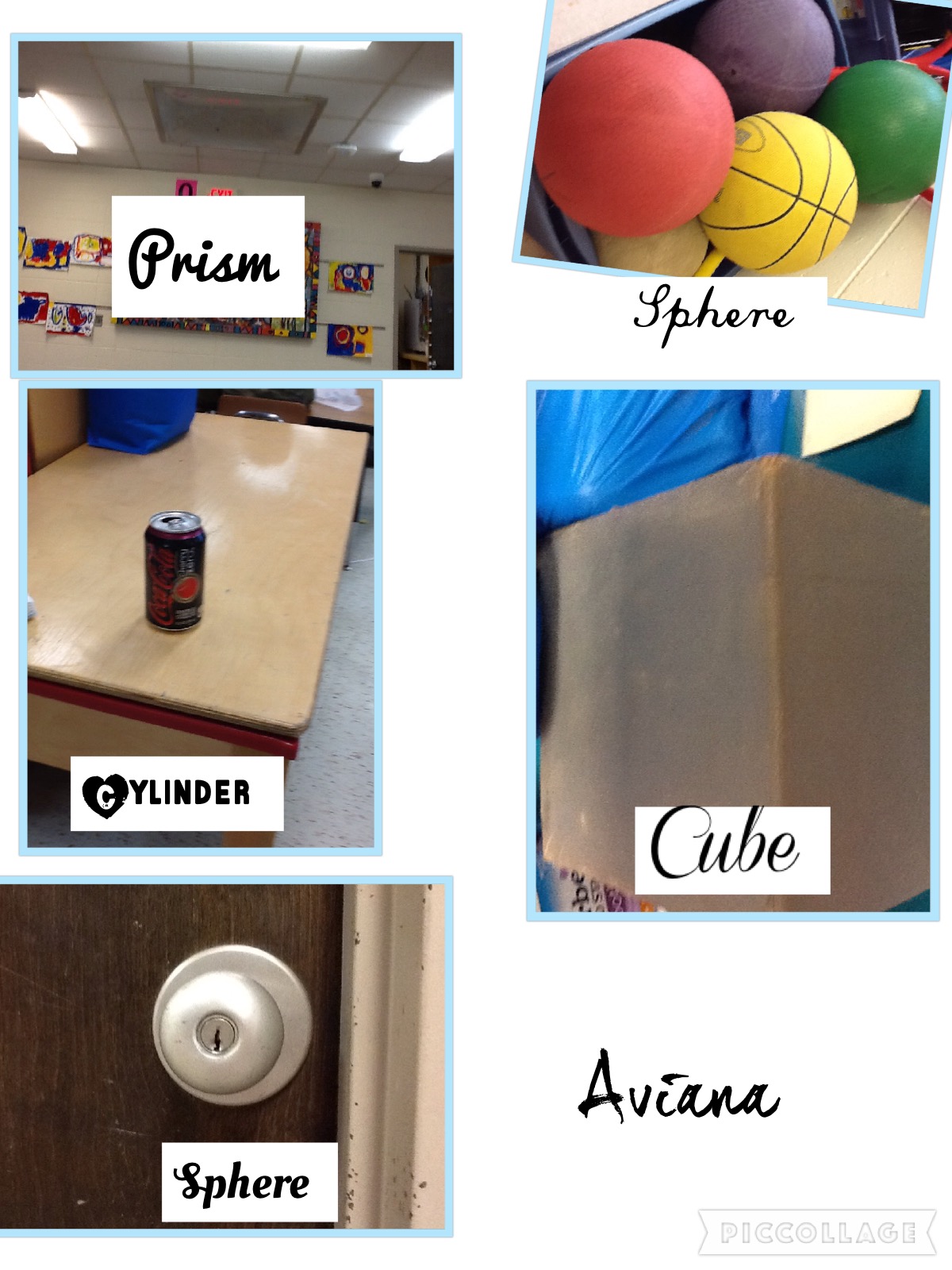
Students were excited to show me what they know about 3D shapes, using PicCollage!    I was inspired to do this activity after seeing it on another teacher's technology blog.  Check it out!

Each table took a turn on a different day to go on a shape hunt around the classroom and the school.  They wore a necklace to tell what they were looking for, in case someone stopped to see what they were up to.  Common Core asks students to identify the 3D shapes of cube, sphere, cone, cylinder.  I also threw in pyramids and prisms for a bonus!    


Here's how we did this project:
1.  I set the iPad timer for 10 minutes, then they opened the camera app and away they went.
2.  Upon return to the classroom, students opened PicCollage and inserted as many pictures as they had from their hunt, and arranged them how they wanted.
3.  Students added text, copying the shape names from the necklace for accuracy.  They were free to choose font style and color.
4.  Add their name, then save!

I uploaded all the shape posters to Dropbox, where I could then share a link to the folder with parents.  I truly feel like this activity reinforced the names of each shape so they could tell them to me more easily for our trimester assessments.  Great job, kids!  Check out their amazing posters below!


As you can see, they found some surprising shapes all around.  Some are awesome examples!  Some I had to remind them that "3D shapes are fat, not flat", like the song we learned.  But for the most part, they did amazing work!  Items found included lunch boxes, spotlights on the bulletin board, playground balls, milk crates, trash barrels, and wood blocks from our classroom.  Many students took pictures of the clocks in the hall and wanted to call it a sphere, but we discussed the shape is really more of two circles on each end of a cylinder, and they thought that was cool!


My school recently began the journey of using devices 1:1 with students, and we are learning about the "Triple E" framework.  It's important when planning technology integration to give some thought to whether or not the activity extends, enhances, and/or engages.  

I believe this 3D shape poster activity did all 3:
Extend - bridge between school learning and everyday experiences (finding everyday objects for a school activity)
Enhance - students developed a more sophisticated understanding of the content of shapes, and demonstrate their learning in a non-traditional way
Engage - definitely ACTIVE learning, and motivating!

I will continue to develop activities like this and help my colleagues do the same.  Next year having a device for each student will be wonderful!  Although an activity such as this, it is definitely easier helping a small group, even though many were super independent.  I really only had to help with making sure things were saved then uploaded to Dropbox.  Next year, with more practice, and with each student logged into their own email account, sharing with me will be easier instead of me touching each device over and over to be sure I have sent the document where it needs to go.  Can't wait!


Saturday, April 30, 2016

How Does Your Garden Grow? Book Creator


Students did some wonderful writing about what can grow in a garden, illustrating and writing on the iPads with Book Creator.  Between all three kindergarten rooms, we have 14 iPads (I have 5 in my room).  I was able to borrow them from the other teachers so that nearly all kids could work at the same time.  Students waiting for their turn were reading their leveled books on RAZ-kids on a Chromebook.

Their ideas included flowers, pumpkins, strawberries, carrots, and more.  We had just learned the sight word "some", so they were to type a sentence with the stem "I have some ______."  Their task was to type their name on the cover, then get three pages done with drawing and typing the words and phonetically spelling the word for their garden plants.  Here are a few sample pages!


I was so impressed with how the students quickly learned how to navigate this app, and how they helped each other get the job done!   When I couldn't get to someone to help them soon enough, someone nearby knew what to do to help.

I used some of the PTA money that they give us for classroom supplies to buy 20 styluses to help us do our drawings.  They worked great!  And here's the best part!  Using 14 iPads at a time was better than shifts of 5 devices, but next year, I will be 1:1 in my classroom!  I can't wait!


I'm super excited how this activity helped me meet the common core standard: "With guidance and support from adults, explore a variety of digital tools to produce and publish wiring, including in collaboration with peers."  They wrote books!  E-books!  We are authors!

To share the books with families, you can send export it as a PDF to Google Drive or DropBox, or send in an email.  Just share from the HOME SCREEN of the app, with all the books listed.  

If you are interested in checking out Book Creator, there is a free version, but it only allows you to make one book.  You would have to delete all the images on each page to start a fresh book, or delete the app and reload it.  


This video is a quick way to see what Book Creator is all about!
Book Creator for the iPad from Book Creator on Vimeo.

Teachers may enjoy creating a single class book to introduce a unit or concept for your students to read, or students can do group or individual books (fiction or non-fiction writing, create a counting book or alphabet book), and so much more!  Adding audio and video to pages would be fun, too.  Just remember that whatever you might normally give to students to do on paper, you might be able to do in Book Creator!

What other apps do you like to use for illustrating and publishing?

SaveSave

Saturday, April 16, 2016

I Can Do Math with iPads


I often have students creating a language arts project on iPads, but I love when I find ways to use iPads with math! You might recall my 100th day iPad activity, and my holiday QR codes around the room!

Over the past few weeks, I've used iPads for story problems and QR codes for tally marks as a math center.  Students have a designated task each day, which rotates to each table throughout the week.  I need 4-6 iPads per day, so I sometimes have to borrow one from next door (I currently have 5).

For story problems, we used the app "Math Word Problems".  It's great because it gives students a story (click the speaker icon to have it read), and several ways to show the answer.  Students create a drawing to solve, fill in a ten frame (click a box twice and it puts an X on it), a number line, and a number sentence area.  After 10 correct problems, it offers a 60 second mini-game. I am so happy I learned about this app from Sue Holt at an iPad conference I attended last year. Isn't it great when you go to a PD and go home with something to implement right away!  Hooray!


TIP:  If you have some styluses to offer, they help kids with drawing and writing on the screen.

I love the turtles this child drew on a log!  :)


Counting tally marks is always good practice, so I found this jungle themed QR code game to go with our animal unit that week.  Anytime kids get to scan codes, they are very engaged (math and sight word QR code activities have been a hit!)  

Students scanned the code using KUTAR, and counted the tallies when they popped up on the screen.  The recording sheet also had ten frames, so it gave students 3 ways to show a number (digit, tallies, ten frame).  I numbered the cards and the boxes on the recording sheet so we could easily tell which cards had already been recorded.


 These codes were downloaded from Greg Smedley-Warren at Kindergarten Smorgasboard! He has awesome ideas and freebies on his site and on his Facebook page.  Check it out!

Apps listed in this post:
Math Word Problems

Kutar QR


Sunday, March 20, 2016

Luck O' the iPads

St. Patrick's Day was a great day to try our luck with PicCollage.  In past years, I would have students make a class book of green things, such as "Some grapes are green." and "All peas are green."  It was a great brainstorming session, reinforcing some sight words.  Actually, I did still have students write a list of a few green ideas in their journals that day.  But you may recall that I'm trying to find ways to use the iPad instead of paper.... so then we got creative and produced some fantastic photo collages.

Students were sent around the school to take photos of green things - backpacks, hats, artwork, signs, and more.  Then they made a collage of the photos they collected, and used their phonetic spelling to label their photos.  I was so impressed! Here you see one of my students with his "hall pass" around his neck, that read "I'm looking for 5 green things", and another boy labeling and arranging his photos back in the computer lab.   NOTE: it worked best to turn off Spell Checker (in the general iPad settings area, in "keyboard"), otherwise their phonetic spelling changed into something that didn't make sense at all. . . .


 This activity was done in 2 - forty minute periods, during my computer lab time on Thursday and Friday.  I borrowed some iPads from the teacher next door, but still only had 7 devices.  Before students set off through the school, I set the timer on the iPad for 10 minutes so that they'd come back to work on their typing, and let the next students get started.  Students chose a green background, and took a "selfie" so I'd know whose work was whose!  Take a look at student work below:


I loaded all collages from devices into my Dropbox account so I could share them here, as well as with parents.  I look forward to students doing more scavenger hunts around the school, such as:
  • 3D shape hunt
  • Things that start with a certain letter
  • Photos of students following rules
  • Favorite Books in the library
  • Different ways to show a number 
  • More colors!
The green idea was found when I was looking for ideas to share with my district colleagues the day I shared my favorite creation apps.  You can see other PicCollage ideas on that post.  What other ideas do you have?  Will you please share?

By the way, here's a great article about the benefits of phonetic (or inventive) spelling.  It's an important part of the developmental process of learning to write.  Parents often wonder if their child will ever learn to spell correctly.  YES, they will!  My students' writing is becoming so much easier to read these days, which is awesome!  "Single instruments first, then the whole orchestra."